Hands-on
One photo, one question: how AI reads images
Upload an image with nothing sensitive in it and ask a specific question. Have uncertainty flagged and check important details against the original.
You want to understand a notice or make sense of a confusing control panel. Instead of typing everything out, you can upload a picture and ask a specific question.
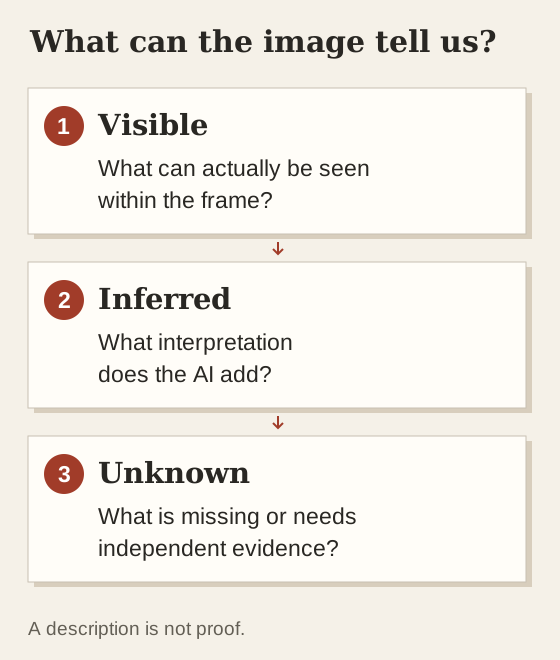
It helps to separate three things: what is visible, what is being inferred, and what the image cannot tell you. A fluent answer will not necessarily make those distinctions for you.
How do I ask an AI to explain an image?
Choose a picture you own that contains nothing sensitive: a shopping list you wrote yourself, for example, or part of a public instruction leaflet. Avoid personal letters and photos of other people for your first attempt. Pick a task whose result you can check yourself.
For a shopping list, try: “Transcribe the legible items. Mark anything unreadable with a question mark. Do not fill in words you are guessing.” Then compare each line. A neatly organised list is little use if oats have become oat milk. This is a suggested exercise, not a reported test result.
- Choose a clear image and remove unnecessary personal information.
- Upload it and ask for one task: a description, a transcription or an explanation of a detail.
- Ask the AI to flag uncertainty and check important details against the original.
Getting the image into the chat
ChatGPT and Claude describe uploads through the plus button beside the message box. On the Gemini website, look for “Add files”. Choose an image from your device and add your question. The interface may differ between the website, mobile app and account. These steps come from the help pages; we have not checked them on current devices.
| Service | Route in the documentation |
|---|---|
| ChatGPT | Plus → Add photos & files |
| Claude | Plus → Add files or photos |
| Gemini on the web | Add files → Upload files |
One clear JPG or PNG is enough to start. We do not give fixed free-tier allowances here: usage limits and account settings can change what is available. If uploading is unavailable or rejected, check your account’s message and the relevant help page first.
Four prompts that make answers easier to check
Jump to a prompt: describe an image · read text · explain a detail · state the limits.
“Describe only what you can see in the image. Separate visible details from inferences.”
“Transcribe the legible text. Preserve numbers, units and line breaks. Flag uncertainty instead of filling in gaps.”
“Explain the marked symbol (circle it first or describe where it is). What information about the device or context are you still missing?”
“Which of my questions cannot be answered from this image? What else would I need to show or check myself?”
These are our suggested prompts. They may make an answer easier to examine, but cannot guarantee accuracy or reliable expressions of uncertainty.
A crop cannot tell the whole story
A photo of a tidy desk shows a tidy desk. The rest of the room remains unknown. Similarly, a product photo does not establish that the device works. Asking a second AI cannot bring back parts of the scene that were never photographed.
Pay particular attention to numbers, small text and spatial relationships. OpenAI explicitly lists approximate counts and incorrect image descriptions among the possible limitations. Enlarge the relevant detail, add the whole view when useful, and check the crucial fact against the original. OpenAI · Image inputs
Remove unnecessary information first
Crop out names, addresses, faces, login details and confidential work information whenever the question does not need them. If those details are essential, first establish whether the service is appropriate and permitted for that use. A practice image does not need them.
Providers have different rules and settings for using conversations to improve models. Turning training off does not automatically mean nothing is stored. Check the guidance for your personal or work account, and think carefully before submitting feedback on sensitive conversations. OpenAI · Data controls · Anthropic · Data and model training · Google · Gemini Privacy Hub
Something to try today: Ask one small question, check the answer against the image, then follow up on one unclear detail. If the decision affects health or safety, a chatbot’s interpretation of a picture is not a sufficient basis.
Sources
- OpenAI · Image inputs
Primary source; checked 18 October 2026.
- Anthropic · Upload files to Claude
Primary source; checked 18 October 2026.
- Google · Uploads in Gemini
Primary source; checked 18 October 2026.
- OpenAI · Data controls
Primary source; checked 18 October 2026.
- Anthropic · Data and model training
Primary source; checked 18 October 2026.
- Google · Gemini Privacy Hub
Primary source; checked 18 October 2026.